Pocket Computers · Volume 8
Repair and Restoration
Forty-odd years on, a PC-1 usually has three troubles: a display going dark from the edges, cells that are the wrong voltage or long dead, and an interface whose rechargeable pack has given up. The electronics themselves are robust, and the CMOS chips are rarely the problem. The display is the hard part. Its seal fails on almost every machine, and for decades there was no cure but a donor computer. Since 2019 there has been a reproduction glass, and fitting it is the main job of this volume.
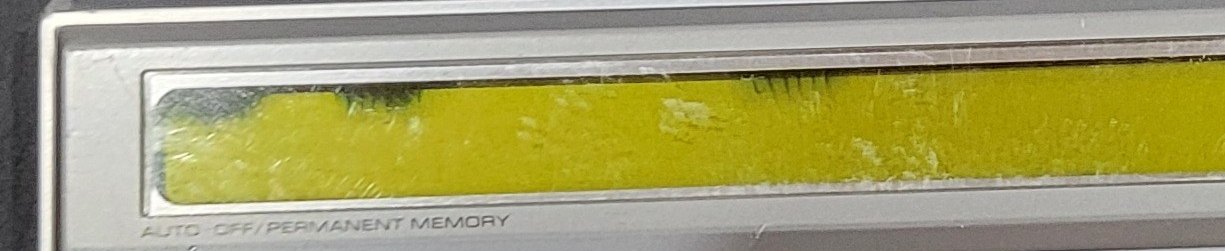
8.1 Why the displays fail
Every source that describes the PC-1211’s display failure blames the seal round the edge of the glass. The seller of the reproduction put it plainly: “the seal around the LCD was of poor quality”; moisture gets in “and ruins the liquid crystal”, producing anything “from a few splotches to complete failure”. Robert Baruch, who designed the reproduction, wrote that “many of these have gone bad due to bad seals between the upper and lower glass”, and another restorer that “almost ALL Tandy PC-1’s have the LCD issue”. The damage starts at an edge and spreads inwards, as on mine. Sharp and Radio Shack never sold the display as a spare.
Two other faults look different. A contrast or voltage fault affects the whole display evenly. A dirty or misaligned conductive strip between the glass and the board leaves whole columns missing, not dark.
8.2 The reproduction display
In 2019 Robert Baruch drew a new glass to the original’s dimensions: 1.0 mm glass, 0.35 mm traces, 24 characters and the annunciators, made by Dongguan Dongxian Electronics in China. He chose an STN liquid crystal instead of the original’s TN, and the finished displays are green instead of the original yellow-brown. His project was written up by Hackaday in March 2019, and the displays were sold for $20 by The Half-Baked Maker, as a “pin-for-pin compatible nearly exact replacement”, on Tindie and Lectronz. By 2026 the listing was marked retired and the store paused; a forum post of June 2026 reported them sold out.
The original glass cannot be mended, and no display from another Sharp model fits: the conductive strip and the pin layout are particular to this family. The alternatives are a reproduction, or a good display from a donor PC-1, PC-1210, PC-1211 or PC-1212.
8.3 The display stack
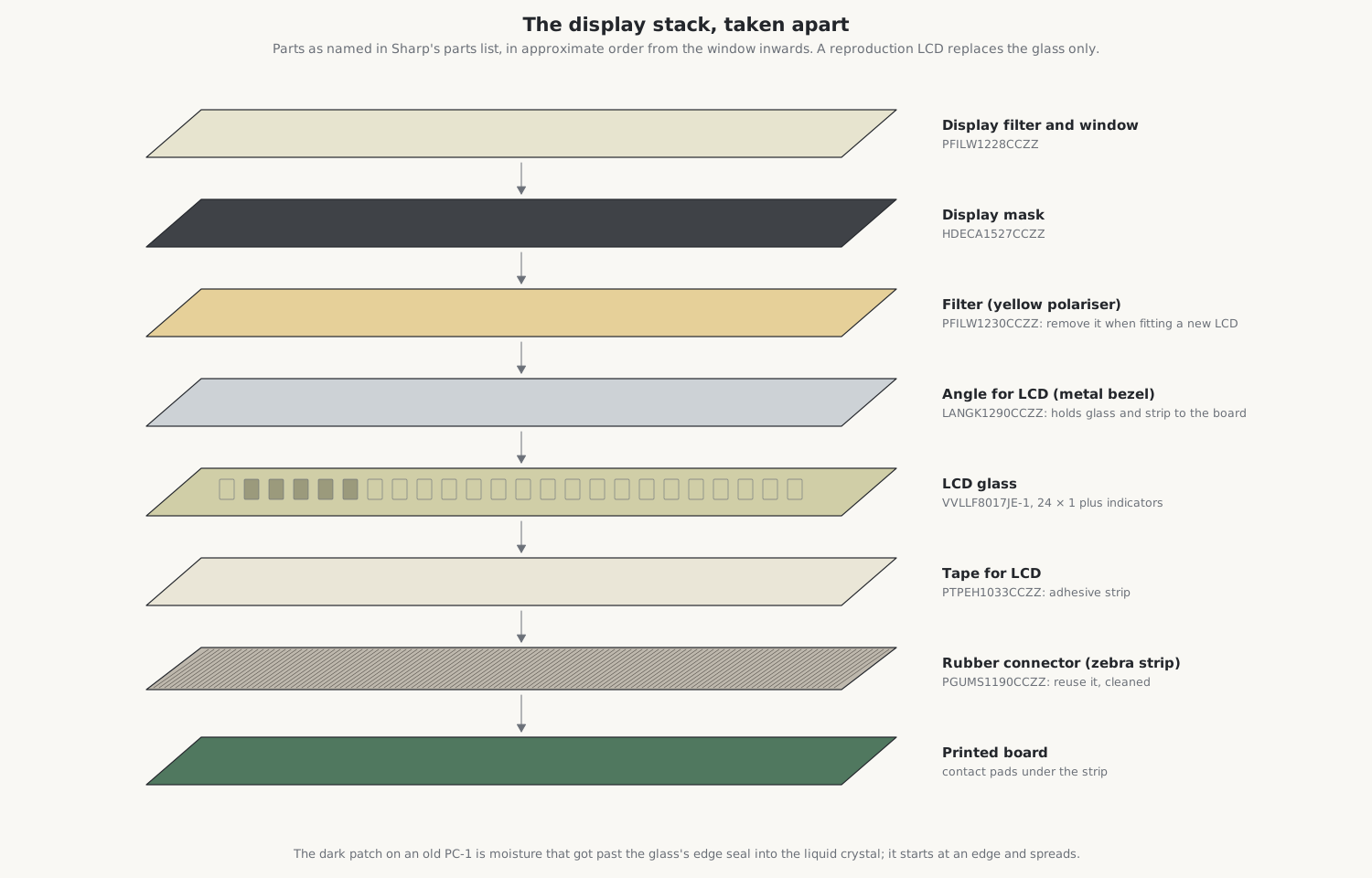
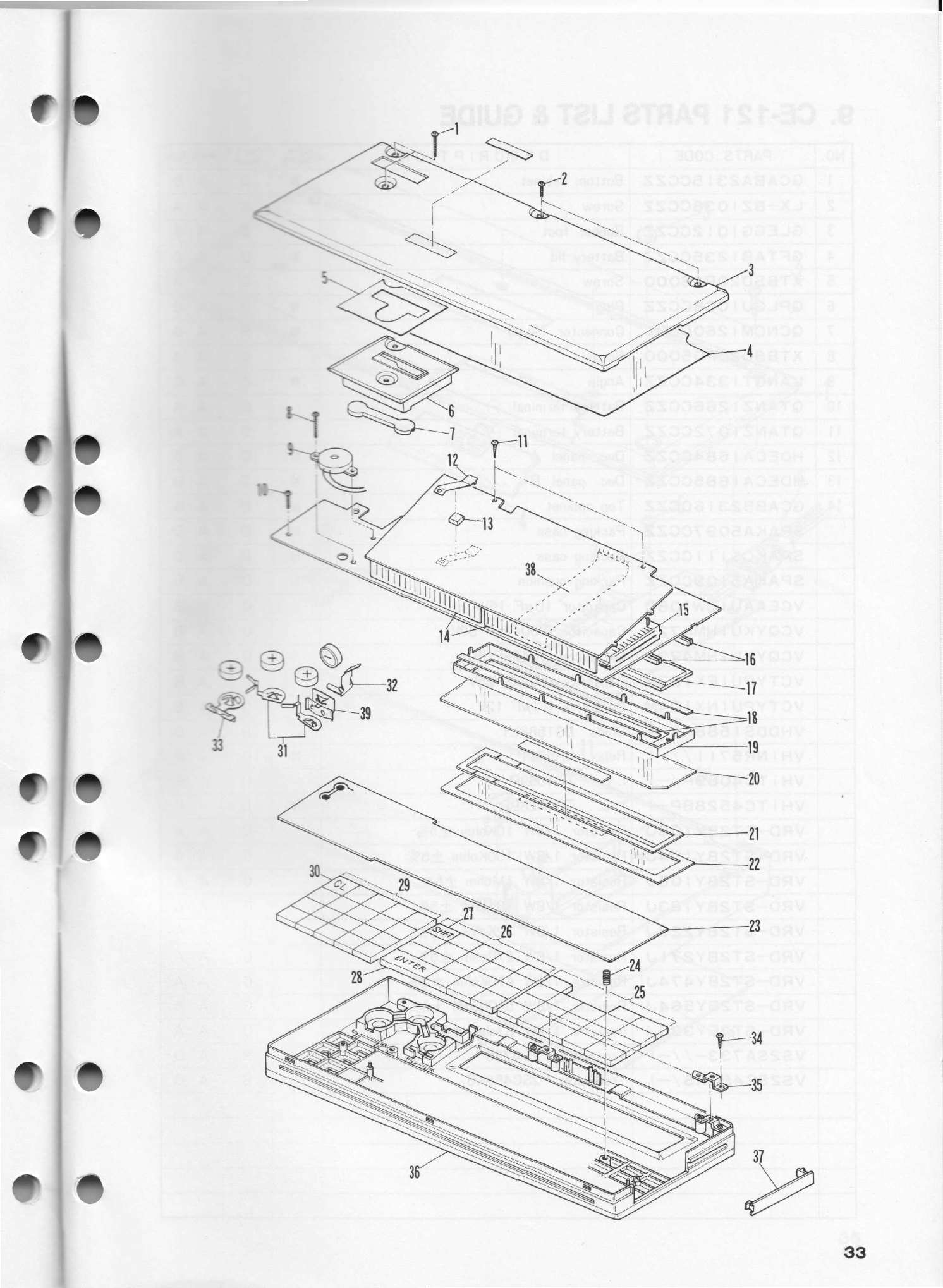
Sharp’s parts list names the pieces: a display filter and display mask behind the window, a yellow filter (the polariser), the metal angle for LCD that clamps everything to the board, the LCD itself, a tape for LCD that holds it, and a single rubber connector, the conductive “zebra” strip that joins the glass’s contacts to pads on the board. A 22-pin flexible cable joins the two circuit boards inside the case.
8.4 Replacing the display, step by step
The steps below come from Sharp’s service manual and Radio Shack’s owner’s manual for opening the case, and from the reproduction’s seller, Robert Baruch’s notes, Jamel Tayeb’s account and N1UGK’s restoration of 2023 for the display itself. The seller’s own guide was a video. Allow about an hour; buyers of the reproduction reported that it often took more than one attempt.
Before starting
- Save anything worth keeping. Opening the case means taking the cells out, which clears the memory.
- Take the computer off the interface with both switched off.
- Have ready: a small screwdriver, magnetised if possible, because the board screws are small and easy to lose; tweezers; a plastic spudger; 99 % isopropyl alcohol; and acetone or a hotplate.
Opening the case
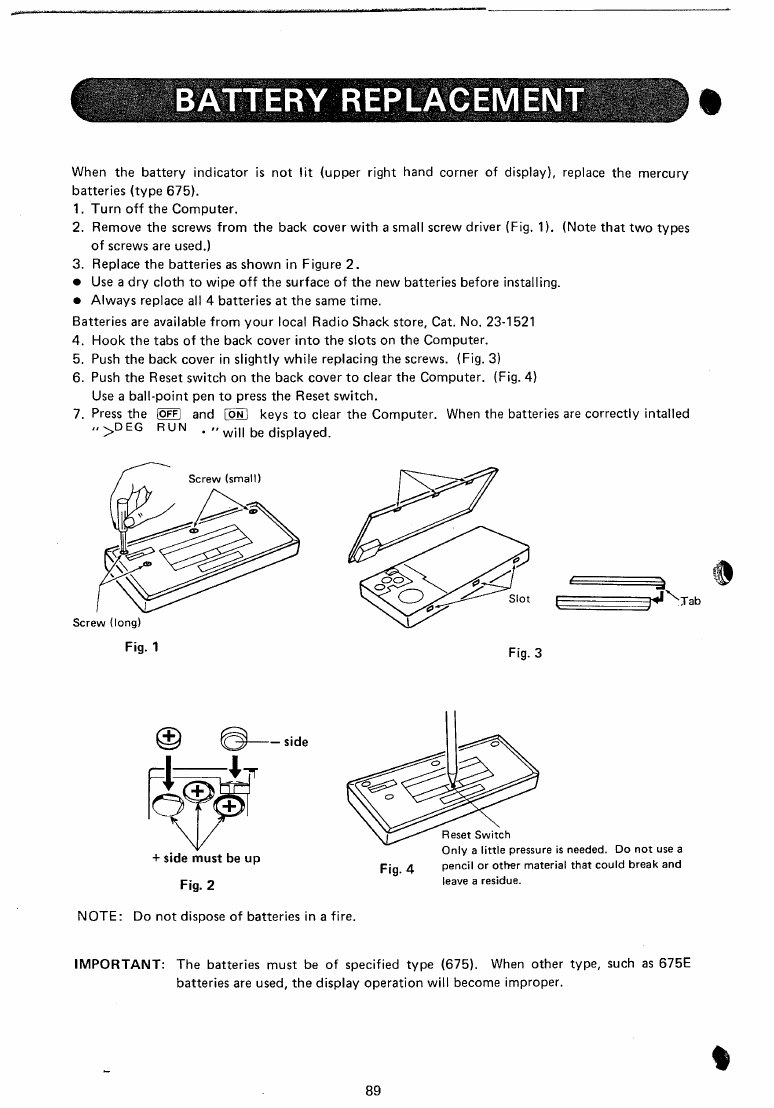
- Switch off, and take out the screws of the back cover. “Note that two types of screws are used”, so keep them apart. The cover hooks in by tabs at one end; lift it from the screw side.
- Take out the cells.
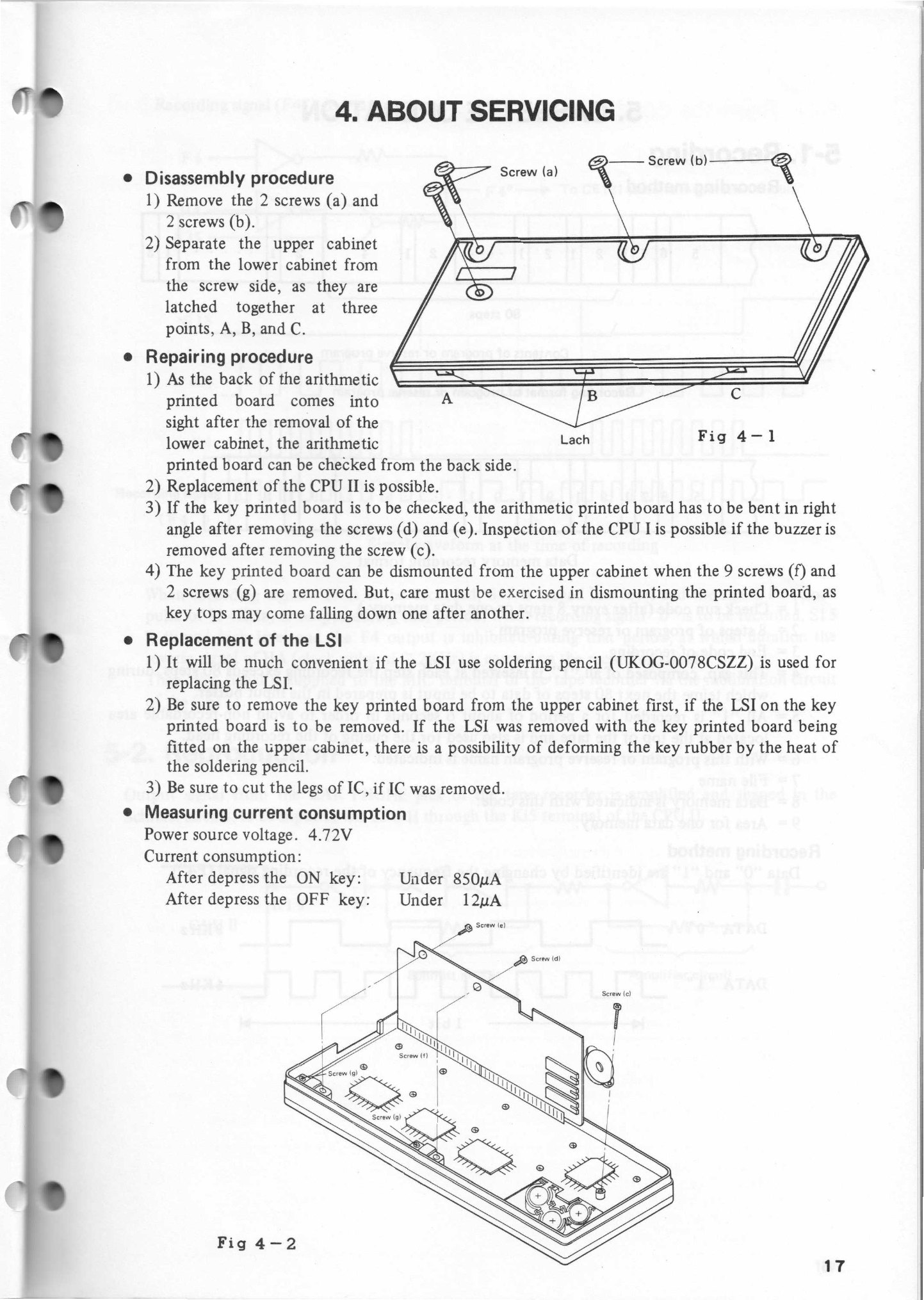
- Sharp’s procedure: remove the two screws (a) and two screws (b), then separate the upper cabinet from the lower one, starting from the screw side, because they are latched together at three points, A, B and C.
- The back of the arithmetic board, the one with CPU II, is now exposed. To reach the other side, the manual says, the arithmetic board “has to be bent in right angle after removing the screws (d) and (e)”; the buzzer is held by screw (c).
- The key board comes out of the upper cabinet after removing nine screws (f) and two screws (g), “but care must be exercised … as key tops may come falling down one after another”. Keep the upper cabinet face down. N1UGK found this “easier than expected”; for him the hard part was getting the battery terminals out of the plastic case.
Taking out the old glass
- The old glass is stuck into its metal bezel with an adhesive strip. Free it either by soaking the bezel and glass in acetone for two to three hours, or by warming them on a hotplate at 100 °C for about three minutes. N1UGK soaked his for about fourteen hours, then soaked it again and scraped off the remains with a spudger, “taking care not to bend the bezel”. Acetone attacks some surfaces, so use a suitable dish.
- Work carefully near the board: a slip of a screwdriver or tweezers can scratch its traces.
- Take the old yellow filter out of the window. The new display has its own polariser, and with the old filter left in it looks very dark. Jamel Tayeb noted that “under this filter, the LCD is grey” and that “the replacement LCD has an integrated filter already”. N1UGK cleaned the residue off with plastic polish and alcohol.
- Note which way round the old glass was fitted before throwing it away. Baruch moved the glass’s sealing bump from one end to the other in his design, so the bump is not a guide.
Fitting the new glass
- Peel the protective film off the new display.
- Clean the new glass’s contacts, the zebra strip and the board’s pads with isopropyl alcohol, “preferably the 99.9 % purity kind”, and do not touch them afterwards. Re-use the original strip; there is no replacement.
- Position the glass in the bezel. “Positioning is critical.” Baruch used a paper shim to keep the glass from moving; N1UGK used a paper wedge and pulled it out with tweezers before closing the bezel. The commonest mistakes reported by buyers were fitting the glass back to front or upside down.
- Close the bezel onto the board evenly, with light, even pressure.
Setting the contrast
- The new glass switches at different voltages from the old one, and needs the contrast trimmer, the 250 kΩ pot that sets VDISP, turned to its maximum. The factory glued the trimmer, and it tends to break: Baruch broke his own, and another fitter’s “just broke apart”. The fix both found was to replace the trimmer with a fixed 240 kΩ resistor; one buyer used 220 kΩ. N1UGK instead lifted the trimmer’s wiper clear of its track.
- The supply voltage matters too. N1UGK found the new display clear at 5.25 V and too dark at 5.8 V, the voltage of fresh zinc-air cells.
Closing up
- Watch the 22-pin flexible cable between the boards as the case closes. One buyer got a blank display because the cable short-circuited when the boards were folded together; folding it over differently cured it.
- Refit the boards and the cabinet, put in the cells, hook the back cover’s tabs into their slots and “push the back cover in slightly while replacing the screws”.
Testing
- Press the reset switch on the back cover with a ball-point pen, “only a little pressure is needed; do not use a pencil”, then press OFF and ON. With good cells the display shows the prompt
>with DEG and RUN. - Step through the modes with MODE, press SHFT, and type a full line of 24 characters to check every column and annunciator. Missing columns point to the strip, not the glass. Radio Shack’s service manual has a full check program, keystroke by keystroke, for the factory test.
- Baruch called his own first fitting “a qualified success” and admitted that he still needed to learn to “reproducibly replace an LCD without several tries”. Some machines have other faults that a new display will not cure; one owner found every dot lit and a constant beep at switch-on.
What to avoid: touching the strip or contacts; leaving the old filter in; turning the glued trimmer hard; prying near the board’s traces; bending the bezel while scraping; turning the key board face up; using a pencil on the reset switches; and soldering a chip on the key board while it is still in the cabinet, which Sharp warns can deform the key rubber.
8.5 Cells
The PC-1 was designed for four type 675 mercury cells of 1.35 V, which gave 5.4 V. Mercury cells have not been sold in the United States since the 1990s. The owner’s manual insists on type 675 and warns that “when other type, such as 675E batteries are used, the display operation will become improper”. Today’s choices:
Table 1 — The PC-1 was designed for four type 675 mercury cells of 1.35 V, which gave 5.4 V. Mercury cells have not been sold in the United States since the 1990s. The owner's manual insists on type 675 and warns that "when other type, such as 675E batteries are used, the display operation will become improper". Today's choices
| Cell | Voltage each | Four cells | Notes |
|---|---|---|---|
| 675 zinc-air (hearing-aid) | 1.4 V | about 5.6–5.8 V | right size; but they start to dry out once the seal is peeled, used or not |
| SR44 silver oxide | 1.55 V | about 6.2 V | fits; brighter, darker display |
| LR44 alkaline | 1.5 V | about 6 V | fits; voltage sags as it discharges |
| 1.35 V converter cells | 1.35 V | 5.4 V | made in this size to replace mercury cells |
The higher voltages darken the display, and with a reproduction display the effect is stronger. N1UGK’s PC-1 arrived running on LR44s at about 6 V with no lasting harm; he brought it down to about 5.3 V by cutting the red supply lead and putting a 1N4148 diode in series with it, covered with heat-shrink sleeving. One PC-1211 owner, finding unlit dots turning grey on four LR44s, ran his machine on three, which brings on the low-battery warning early.
Replace all four together, positive side up, wiped dry, and press the reset switch afterwards. On a machine that has had leaking cells, N1UGK notes, the leakage shows round the badge.
8.6 When the keys stop
If every key is dead, usually after the computer was docked with the power on, press the ALL RESET switch on the back: “This will clear the entire Computer.” Static or strong electrical noise can do the same, and the manual gives the same remedy. The key tops sit loose over a rubber sheet and fall out if the key board is turned face up.
8.7 The interface
- The battery. The 26-3505’s Ni-Cd pack is usually dead after forty years. N1UGK replaced his with NiMH cells. His adapter was missing, and he charged the pack from a 6 V centre-negative adapter of the kind used by the TRS-80 Model 100; Radio Shack’s manual warns that the wrong adapter can damage the interface, so check the polarity and voltage before plugging anything in. The original adapter was Sharp’s EA-11E.
- The printer. N1UGK found the mechanism seized; a little food-grade silicone grease on the print-head drive gear freed it. He revived the old ribbon with a trace of WD-40 and by advancing it several turns. New Epson ERC-05 ribbons are said to fit. Use 44–45 mm paper, wound tight: the manual warns that “use of deformed paper tape may cause irregular paper feeding or paper jamming”.
- Starting up. Switch on the printer first, then the computer, then press ON after a few seconds, with PRINT on to print.
- Corrosion. Look round the battery compartment of the interface too.
8.8 A safe first power-up
For a machine that has not been used in years:
- Look inside the cell compartment first, and clean off any corrosion.
- Fit four fresh cells of one kind, or power it from a bench supply set to about 5.4 V with the current limited. The service manual’s test at 4.72 V allows under 850 µA switched on and under 12 µA off; much more means a fault.
- Press the reset switch on the back, then OFF and ON, and look for the prompt with DEG and RUN.
- Before docking it in an interface, charge the interface’s pack, or fit a new one, and check the adapter’s polarity.
- Switch both off before docking.
8.9 Documents
The repair documents in the Library are Sharp’s service manual for the PC-1211 and CE-121, with the disassembly, check program, circuits and parts lists; Radio Shack’s PC-1 service manual with Radio Shack’s own part numbers; the owner’s manual; the 26-3505 manual; and Sharp’s CE-122 manual.
Sources
- Lectronz and Tindie listings for The Half-Baked Maker’s PC-1/PC-1211 replacement LCD, with buyers’ reviews; Robert Baruch’s EEVblog thread “LCD design: is this good enough?” (2019–2026); Hackaday, “Designing Custom LCDs To Repair Retrocomputers” (3 March 2019).
- N1UGK, “TRS-80 Pocket Computer PC-1” (October 2023); Jamel Tayeb, “My beloved Sharp PC-1211, part 3” (2015); HP Museum forum threads on PC-1211 cells and displays.
- Sharp, Service Manual PC-1211, CE-121, section 4 (servicing) and the parts lists; Radio Shack owner’s manual, pp. 89–91; 26-3505 manual, pp. 3–10.
Comments (0)